How to View RADIUS Event Logs
You need to prove that your network is secure, your data stays private, and unauthorized access is never an option. RADIUS (Remote Authentication Dial-In User Service) ensures authentication, guaranteeing access is locked down to only trusted users. A RADIUS event log contains comprehensive information on the devices and users trying to gain access to your network.
If you encounter connectivity issues or suspect unauthorized access, RADIUS logs should be your primary information source for troubleshooting. In addition, RADIUS event logs can be tied to a SIEM tool to create alarms during connection issues and help with any authentication issues during client-user connections.
What Is a RADIUS Event Log?
A RADIUS server is responsible for Authorization and Accounting in addition to its primary role of Authentication, hence its alternate name: “AAA server.”
You can learn more about AAA servers in this video:
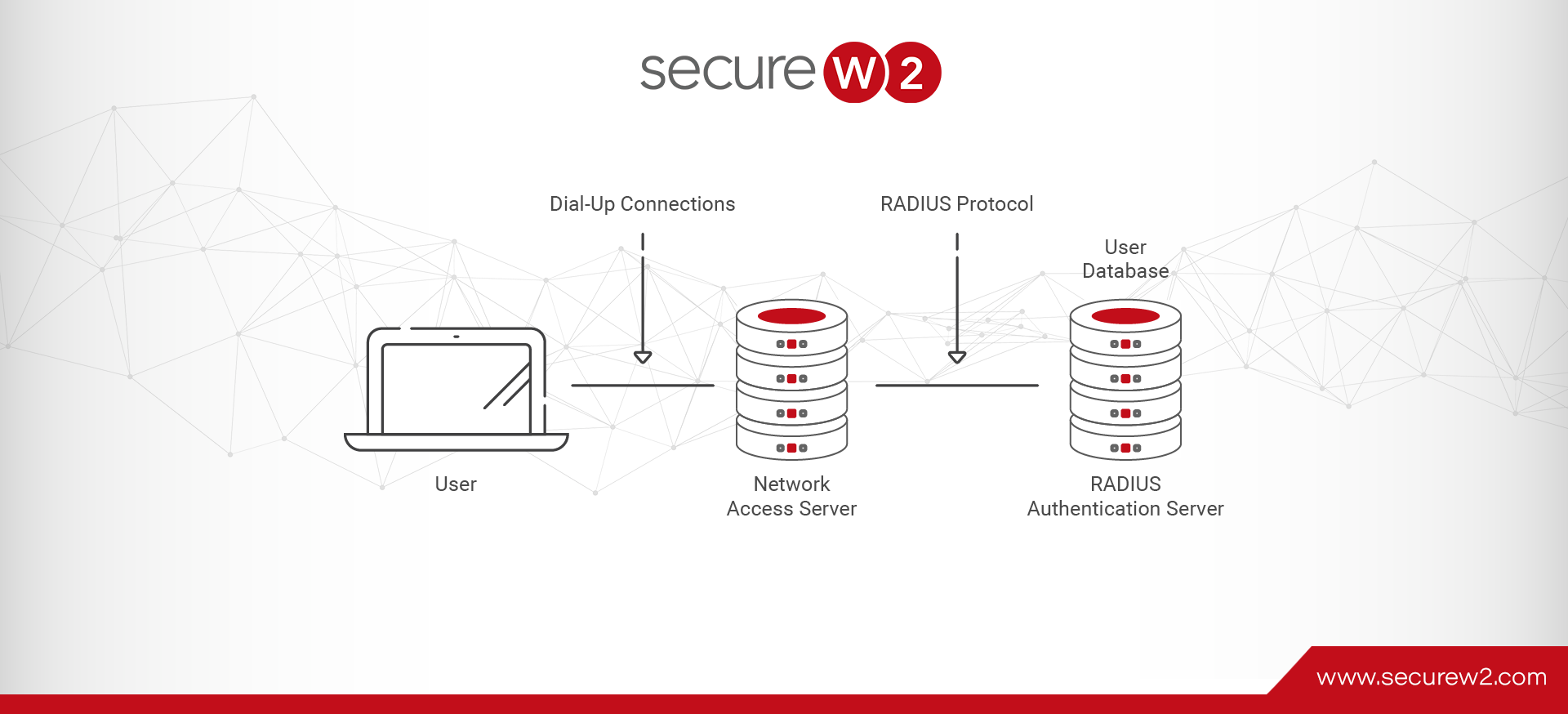
Given the importance of these tasks, it should come as no surprise that one function of a RADIUS server is to log and store a record of all the requests it receives. A RADIUS client communicates with a RADIUS server using the RADIUS protocol to enforce network access for users.
An event log records all the events when a RADIUS client is required to connect to a network. Event logs are used to troubleshoot issues, track all the users and devices that request authentication, and generate reports for compliance purposes.
RADIUS event logs may be used for:
- Compliance audits
- Troubleshooting authentication issues
- Troubleshooting VPN issues
- Tracking use
- Tracking users
- Tracking devices
RADIUS event logs are a powerful tool for managing your 802.1X network and users.
What Information Is Included in a RADIUS Log?
The data contained within a RADIUS event log varies from RADIUS to RADIUS, but there are some standard fields that you’re likely to find regardless of your RADIUS provider.
- Date
- Time
- Name
- Client Type
- Record Type
- Authentication Type
A RADIUS vendor with a robust management and reporting suite, like our SecureW2 Cloud RADIUS, can add and remove data fields from event logs. Custom RADIUS event logs can be handy for compliance audits.
In addition to event logs for authentication and authorization requests, RADIUS servers usually log other event types, such as server startups, shutdowns, or service interruptions. These make up a small fraction of the overall logs but are particularly useful for investigating outages.
RADIUS for Compliance Purposes
Every organization is responsible for securing its data, maintaining compliance, and ensuring full visibility into access events.
Your network and access protocols are critical — determining who gets in, what they can access, and how their activity is tracked. IT teams must demonstrate that controls are strong, every access attempt is logged, and no gaps exist.
A RADIUS server talks to an organization’s directory that’s stored on-premises or tied to an identity provider for unique user identification at the time of authentication, and to provide access to the network.
Admins can use RADIUS to enforce access controls on a VPN, segment users and devices into VLANs, and apply granular security policies to ensure the right access for the right users.
RADIUS also enables users to access the network by authenticating themselves with their identities and subsequent applications. For compliance, RADIUS covers audit log requirements when it ties to a tool for event logging.
How to View FreeRADIUS Logs
FreeRADIUS logs can be viewed directly on the server where FreeRADIUS is running. The location of the log files depends on your installation and configuration, but common paths include /var/log/freeradius/.
For real-time troubleshooting, run FreeRADIUS in debug mode:
freeradius -X
This displays RADIUS requests, authentication attempts, responses, and errors directly in the terminal, making it useful for diagnosing connection and authentication issues.
Note: For ongoing monitoring, check the configured log directory or use your system’s log management tools to search and review recorded RADIUS events.
How to View Failed RADIUS Authentication Logs
When users or devices fail to connect to your 802.1X network, the RADIUS server is the single source of truth for diagnosing the failure.
Access-Reject packets typically point to credential mismatches, expired or untrusted certificates, policy misconfigurations, or network-level mismatches (such as a shared secret error).
Here is how to locate and inspect failed authentication logs across common RADIUS environments.
1. Inspecting Failed Authentication Logs on Cloud RADIUS (Managed SaaS Platforms)
Cloud RADIUS platforms simplify log analysis by surfacing real-time, parsed authentication events in a centralized administrative portal without requiring manual log collection from Linux daemons or Windows event logs.
- Navigation: Log in to your Cloud RADIUS Management Portal and go to RADIUS Logs, Activity, or Authentication Events.
- Filter Events: Filter the live log stream by status: Access-Reject or Failure.
- Inspect Details: Click on a specific event to review the granular diagnostic breakdown:
- Authentication Method: Verify whether the client attempted EAP-TLS, PEAP-MSCHAPv2, or EAP-TTLS.
- Certificate Diagnostics: Check certificate status (e.g., Expired, Revoked via CRL/OCSP, or Untrusted CA chain).
- Identity Store Lookup: Confirm whether the user or machine object was successfully resolved in your cloud identity provider (e.g., Google Workspace, Microsoft Entra ID, Okta).
- Policy Resolution: Review which network access policy or role mapping failed to evaluate.
2. Inspecting Failed Authentication Logs on FreeRADIUS (Linux)
FreeRADIUS logs events to standard text files and offers an interactive debug mode to capture raw EAP transactions.
- Log File Location:
- Debian/Ubuntu: /var/log/freeradius/radius.log
- RHEL/CentOS: /var/log/radius/radius.log
- Filter Rejections:
grep -i “Login incorrect\|Auth-Type = Reject” /var/log/freeradius/radius.log - Debug Mode (Deep Packet Inspection):
To see the full TLS handshake, certificate validation, and module execution in real time, stop the daemon and start it in debug mode:
sudo systemctl stop freeradius
sudo freeradius -X
Look for output marked [eap], Auth-Type = Reject, or rlm_eap_tls errors.
3. Inspecting Failed Authentication Logs on Microsoft Network Policy Server (NPS / Windows Server)
Windows NPS logs failed authentications to the Windows Event Log under Security and Network Policy Server roles.
- Event Viewer Navigation:
- Open Event Viewer (msc).
- Navigate to Custom Views $\rightarrow$ Server Roles $\rightarrow$ Network Policy and Access Services (or Windows Logs $\rightarrow$ Security).
- Key Event IDs:
- Event ID 6273: Network Policy Server denied access to a user (Access-Reject).
- Event ID 6274: NPS discarded the request (often due to policy misconfiguration or malformed packets).
- Key Fields to Check in Event Details:
- Reason Code: Points to the exact failure mechanism (e.g., Reason Code 16 for bad credentials, Reason Code 23 for disabled/locked account, Reason Code 262 for certificate failure)
- Calling Station ID: The MAC address of the connecting client device.
- Network Policy Name: Shows which policy evaluated the request.
4. Inspecting Failed Authentication Logs on Cisco Identity Services Engine (ISE)
Cisco ISE captures detailed state-machine evaluations for every RADIUS session in its monitoring dashboard.
- Navigation: Open the ISE Admin Portal and navigate to Operations $\rightarrow$ RADIUS $\rightarrow$ Live Logs.
- Identify Failures: Look for entries marked with a Red Status Icon.
- Access Step-by-Step Reports: Click the Details (magnifying glass icon) next to the event to view:
- Failure Reason Code: (e.g., 5400 Authentication failed, 22056 Subject not found in identity source).
- Resolved Identity Store & Policies: Inspect which Authentication and Authorization policy rules matched or were bypassed.
Common RADIUS Failure Indicators at a Glance
The following table explains some of the most common RADIUS failure indicators.
| Status / Log Entry | Root Cause | Recommended Action |
|---|---|---|
| Access-Reject (Code 3) | General failure returned by the RADIUS server to the NAS. | Check server-side logs for specific reason codes. |
| User Unknown / Subject Not Found | Identity not found in directory, or domain/realm stripped incorrectly. | Verify UPN formatting and directory sync status. |
| EAP-TLS Handshake Failed | Client certificate missing, expired, untrusted, or revoked. | Check certificate validity and intermediate CA trust chain. |
| Shared Secret Mismatch | RADIUS secret does not match between NAS (AP/Switch) and RADIUS. | Re-enter the shared secret on the AP/controller and RADIUS client entry. |
| NAS-IP Not Configured / Ignored | Request originated from an unrecognized IP address. | Add the network device’s IP/subnet to authorized RADIUS clients. |
How to View NPS Logs
NPS (Network Policy Server) records RADIUS authentication and connection events in Windows Event Viewer, rather than in the NPS console.
To view NPS events:
- Open Event Viewer on the NPS server.
- Go to Custom Views → Server Roles → Network Policy and Access Services.
- Review the logged authentication requests, access decisions, and related NPS events.
For more detailed RADIUS accounting and authentication logs, NPS can also write events to log files on the server. These logs can be useful when troubleshooting failed authentications or investigating network access activity.
Note: Because NPS is closely tied to Windows Server and Active Directory, accessing and managing these logs requires access to the Windows server hosting NPS.
How to View RADIUS Logs in SecureW2 Cloud RADIUS
SecureW2 Cloud RADIUS provides detailed RADIUS event logs through its cloud management portal. The logs include authentication requests and responses such as ACCESS_ACCEPT and ACCESS_REJECT.
To view RADIUS events:
- Sign in to the SecureW2 management portal.
- Go to Data & Management.
- Select RADIUS Events.
- Review the logged authentication requests, responses, and other RADIUS event details.
Because the logs are available directly in the cloud portal, you can monitor and troubleshoot RADIUS activity without accessing an on-premises RADIUS server.
Cloud RADIUS Event Log Fields and Meanings
Cloud RADIUS event logs were designed to give administrators a clear snapshot of each authentication attempt. As such, we’ve incorporated numerous fields into them, including the fields set out in the following table:
| Field | Description |
|---|---|
| Region | Origin of the connection request. |
| Timestamp | Recorded time of the connection request. |
| Identity | Username used during authentication. |
| Subject/Common Name | Name of the user associated with the certificate or token. |
| User Principal Name | Email ID of the user attempting to connect to the network. |
| Device | Device information, such as its serial number. |
| Certificate Serial | Serial number of the device certificate used during the connection attempt. |
| MAC Address | Media Access Control (MAC) address of the connecting device. |
| Client Public IP | IPv4 address associated with the connecting device. |
| Operating System | Operating system running on the connecting device. |
| User Role | Role assigned to the user by the administrator. |
| Network Policy | Network policy applied to the user. |
| RADIUS Reply | Authentication result returned by RADIUS, such as ACCESS_ACCEPT or ACCESS_REJECT. |
| Error Message | Reason for a failed authentication attempt, if applicable. |
Cloud RADIUS Event Log Search Filters
You can apply filters for specific searches, like a particular user if a single person is experiencing problems connecting to the network. Filters are also used for OS, MAC addresses, and other fields to narrow your search and troubleshoot quickly.
RADIUS logs are an excellent tool for troubleshooting when you get reports that users can’t connect to your network.
Move Beyond On-Premises RADIUS With a Cloud-Native Authentication Stack
On-premises RADIUS servers carry hefty maintenance costs and an increased risk of hardware failure.
Our Cloud RADIUS eliminates operational overhead while strengthening security.
It authenticates users and devices using live security signals from your identity provider, MDM, and EDR/XDR platforms, so access decisions reflect current device posture, not a stale snapshot from last week’s sync.
The result is authentication that scales with the organization, not against it. Teams that have replaced legacy RADIUS with SecureW2 Cloud RADIUS consistently report faster authentication times, fewer outages, and best-in-class uptime, and the option for 99.999% availability.
If your current RADIUS setup is creating friction for IT or leaving security gaps, there is a better path. See SecureW2 Cloud RADIUS in action.
Frequently Asked Questions
How do I find Event Viewer logs?
Press Win + R, type “eventvwr.msc”, and press Enter to open the Event Viewer. In the left navigation pane, expand Windows Logs to browse core categories like Application, Security, and System. To inspect specific server role events, expand Applications and Services Logs or Custom Views. You can search, filter by specific Event IDs, or sort entries by date and severity.
What is an event log?
An event log is a time-stamped, standardized record generated by an operating system, application, or network service to document significant system activity. These logs capture operational events, informational notices, warnings, critical errors, and security audits like user logins or policy evaluations. IT administrators use event logs for real-time monitoring, security incident investigations, compliance reporting, and system troubleshooting across network infrastructure.
How can I get Event Viewer logs remotely?
Open Event Viewer, right-click Event Viewer (Local) in the left pane, select Connect to Another Computer, and enter the target machine’s hostname or IP address. Alternatively, retrieve logs via PowerShell by running “Get-WinEvent -ComputerName ‘ServerName’ -LogName ‘Security’ -MaxEvents 50”. Ensure Remote Event Log Management and WinRM firewall rules are enabled on the target system.
How can I enable NPS logging?
Open the Network Policy Server console (“nps.msc”), click Accounting, and select Change Log File Properties. Under the Settings tab, check the boxes for accounting requests, authentication requests, and periodic status. To ensure failed and successful authentications are captured in Windows Event Viewer, run the command “auditpol /set /subcategory:’Network Policy Server’ /success:enable /failure:enable” in an elevated command prompt.

Neha Singh
Neha Singh is a CISSP, with 13 years of experience, specializing in PKI, RADIUS, and 802.1X frameworks. She is skilled at translating real-world customer challenges into practical scalable solutions. Neha drives adoption of complex security solutions through clear, cross-functional collaboration with Product, Engineering, and Sales. Combines her deep product management experience with a research-driven mindset to build customer trust. She holds multiple industry certifications and serves on the Board of Directors for the ISC2 Chennai Chapter.